i just found myself using this random trick that one of my art professors taught me and i thought other people might like it!
other tips: -at rest, the elbow hits the bottom of the ribcage, and the wrist hits the bottom of the crotch -the distance from your inner elbow to your wrist is about the same length as your foot -the length of your hand (from wrist to the tip of your middle finger) is about the same length as the distance between the bottom of your chin and your hairline
so, if you have a feeling that proportions are wrong on something, those work as quick gauges. like, if a character’s forearm looks too long, try to visualize their foot being the same size and see if that works. if the hands look too big, look at their size in relation to the face.
Make a rectangle, copy it over to the side so it’s like another window.
Now copy those and put them to the side so it’s like 4 windows in a row.
Now do that again so now you have 8 windows
Now do the same thing only downwards and keep going until you have a nice selection of windows.
Tadaaa~
Now from there, I use the distort tool, I set the layer mode to Screen, make all the windows black, and then just colour in the spots where lights should be on.
So remember how I was spazzing about drawpile earlier today? Just tried it out right now and … SUCH A GOOD.
It’s like if OpenCanvas 0.86 got an upgrade to the modern world.
It’s free, it can record your art, there are actual layers and actual brushes, and uvu I’m just so happy. Like, you can use it as a drawing program on the regular, BUT ALSO you can invite your friends to draw or to watch.
(Like, you can do that fun thing where one person pencils, another person inks, and another person colors, etc etc. Or just draw and chat.)
Seriously – download it (it’s got Mac, Windows, and even Linux versions!) Then we can draw stuff together!! :DDD
DO IT AND COME PLAY WITH ME!!! <333 Seriously, it’s like pchat of old days except with a way more beefier tools, colours and layers section. It’s a collaborative Painter Sai. It’s fekkin’ awesome, is what!
This is a nice chart! Lipsync is one of my not-so-secret passions. I also hate front mouths. They’re harder to inbetween, I find, and they’re not used nearly as frequently. Here’s some ¾ mouths I made.
These are the basic shapes I was taught, and I use. Standard lipsync shapes;;
You have your closed mouth to open, to clenched teeth, to oohs, and your (often optional) F, L, and TH mouths.
Tips!
Your top teeth don’t move; I mean, stylistically it happens sometimes (Gravity falls does it fairly well, as much as I haaaaate that), but your lipsync will prolly look better if they don’t.
My clenched teeth (SH) mouth is always a bit wider than my biggest AH mouth. It adds variation and helps your shapes blend more nicely. Conversely, my biggest AH mouth is narrower than my SH mouth and my closed (M) mouth.
My L mouth is a tiny bit more closed than my biggest AH, and not as closed as my second biggest AH. It fits between them nicely so that if you have to go from an L to an AH mouth, like you would for the word “Like” or “Love”, it doesn’t pop or look weird.
My R and oo mouths move forward on the face a bit, it adds dimension, and if you leave it all in the same place and have the mouth just shrink into a circle it miiiight look weird.
Aaaaand I think that’s it? Never go from a SH mouth to a TH mouth, it’ll pop and look weird…uhhh;
Also! It’s alright to skip some shapes;;
So below is a lipsync I made using the above shapes;
It’s clear what they’re saying, the mouth is moving nicely, but there’s only one problem. Veeeery rarely do they give you enough time to use all the mouths you want to make it move nice. Voice actors talk fast to fit everything in and holycrap do we hate love them for it.
So here’s a fast one.
Those two gifs should start at the same time, and notice that the second one stops while the first one is still saying “doing”.
I not only cut out the mouth between the biggest AH and the clenched teeth, but I combined the word “Are you” into, like, 3 shapes. I also trimmed some inbetweens overall. The lipsync still reads, though! You can still tell what they’re saying even without audio (which would help it a bit, haha~)
Cutting out that stuff ended the lipsync a whole 14 frames sooner (more than half a second!). It doesn’t sound like much, but with 24 frames per second and dialogue moving at the speed of light, you don’t have time to dilly dally. This isn’t a preschool show;;
Aaaaaand I think that’s it. Liiiipsyyyyyync~~~
Now to go back to actual work and stop talking about things most ppl don’t care about;
I AM CRYING TEARS OF RELIEF BECAUSE I NEED THESE REFERENCES FOR MY SENIOR FILM’S DIALOGUE~
Reblogging this again because I’ve been using this reference for the last 2 months to help with my lip-synch in my film, and I’ve just tested one scene where I used the reference…And my mouth-drawings have improved tenfold ever since.
To the OP who made this chart…I wish I could hug you right now because you helped make my film look much better. c8
This post makes its rounds every so often;; I’m glad people are getting use out of me not wanting to do the actual work I had!
The other day I came across this awesome program by accident
(I don’t even remember what I was actually searching for, but on the several
times I’ve looked for a program like this I’ve had no luck). It’s cool enough that I wanted to share it.
It’s called DesignDoll (website here) and it’s a program that lets you shape and pose a human figure pretty much however you want.
There’s a trial version with no expiration date that can be
downloaded for free, as well as the “pro license” version priced at $79.
I’ve only had the free version for two days so far, so I’m not an expert and I
haven’t figured out all of the features yet, but I’ve got the basics down. The
website’s tutorials are actually pretty helpful for the basics, as well.
Here’s the page for download, which has a list of the
features available in both versions.
There are three features the free version doesn’t have:
Can’t save OBJ files for export
Can’t download models and poses from Doll
Atelier (a sharing site for users; note that the site is in Japanese, though)
It can’t load saved files
The third one means that if you make a pose, save it, and
close the program, you can’t load that
pose/modified model later. You have to start with the default model. I
found that out when I tried to load a file from the day before (this is why
reading is important…). Whether saving your modifications (and downloading models and poses) is worth $80 is up to you.
But, the default
model is pretty nice and honestly if all you’re looking for is a basic pose reference
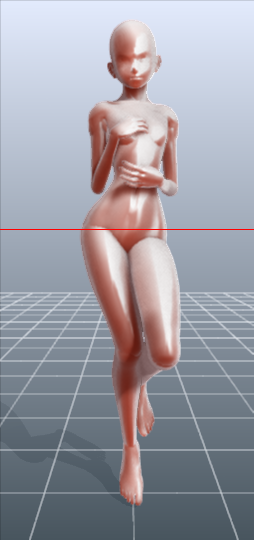
it should work fairly well as it is. Here’s what it looks like:
There’s a pose tag
that lets you drag each joint into place and rotate body parts. The torso and
waist can be twisted separately, and it seems like everything pretty much
follows the range of movement it would have on an actual human.
Even the entire shoulder area is actually movable along with the joint! See, like how the scapular area of the back raises with the arm:
The morphing tag
is one of the coolest features, in my opinion. It lets you pick and choose from
a library of pre-set forms for the head, chest, arms, legs, etc. It has some more realistic body shapes in addition to more anime-like ones. Don’t like the
options there? Mix a few to get what you want! Each option has a slider that
lets you blend as much or as little as you want into the design.
So you, too, can create beautiful things like kawaii
Muscle-chan!!
The scale tag
lets you mess with the proportions and connection points of different joints. This
feature combined with the morphing feature not only allows more body shape
variations, but it also means that you can do things like make a more digitigrade
model if you want. (The feet only have an ankle joint, but for regular human poses that’s all that you really need, so whatever.)
Or you can make a weird chubby alien-like thing with giant
hands and balloon tiddies if that’s more your thing.
The ability to pose
hands to the extent it allows is far more than I could have hoped for from
a free program. Seriously, you can change the position of each finger joint individually, as well as how spread out the fingers are from each other. Each crease on the diagram below is a point of movement, and the circles are for spread between fingers.
And to make it a bit more convenient, there’s a library of pre-set hand poses you can pick from as well, and then change the pose from that if you like.
In both versions, you can also import OBJ files from other places for the model to hold, like if you wanted to have them hold a sword or something.
Basically, this program is awesome and free and you should
totally check it out if you want a good program for creating pose references.




 May's Blog